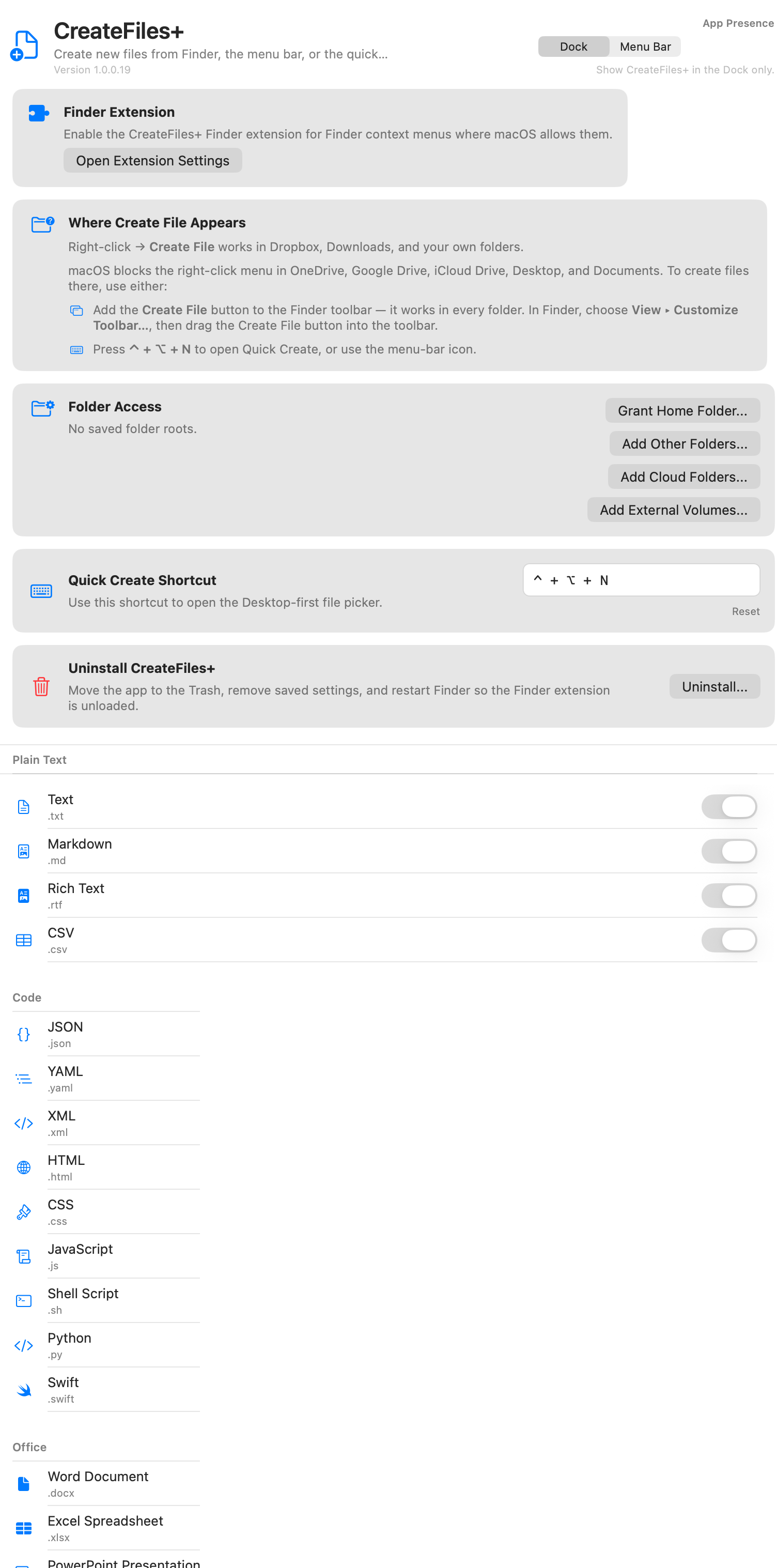
Identify which Finder route is affected
Right-click menu
Test by right-clicking the background of an ordinary local Finder folder. macOS may hide this extension menu in cloud-synced and protected locations even when the extension is enabled.
Finder toolbar button
In Finder, choose View > Customize Toolbar, drag Create File into the toolbar, and click Done. This is the intended route for iCloud Drive, OneDrive, Google Drive, Desktop, and Documents.
Quick Create shortcut
Press Control-Option-N to open Quick Create. Confirm the displayed destination before creating; the app can target the front Finder folder or Desktop.
Enable the extension in macOS
Open CreateFiles+ > Permissions & Folders and start with Setup Health Check. If automatic repair cannot finish, open System Settings > Login Items & Extensions and enable CreateFiles+ Finder Extension under Finder extensions.
Refresh Finder after changing the toggle
Relaunch Finder or log out and back in so macOS reloads the right-click menu and toolbar item. If Customize Toolbar was already open, close and reopen it before looking for Create File.
Repair a missing or duplicate toolbar item
After an update, remove an old duplicate Create File item from Finder's toolbar and add the current item again. Run Enable Finder Extension from Setup Health Check first if the current item is absent from Customize Toolbar.
Grant the destination folder once
Use Folder Access > Grant Home Folder for local folders you own. Use Add Cloud Folders for Dropbox, OneDrive, Google Drive, or iCloud Drive; granting a provider root covers its subfolders through a secure macOS bookmark.
Know the expected limitation
A missing right-click entry in a protected or cloud folder is not necessarily a broken extension. CreateFiles+ intentionally uses the Finder toolbar or Quick Create in those locations instead of bypassing macOS extension rules.
How to do it with CreateFiles+
- Open CreateFiles+ > Permissions & Folders and run Setup Health Check.
- Enable CreateFiles+ Finder Extension in System Settings > Login Items & Extensions if requested.
- Relaunch Finder, then test the right-click menu in an ordinary local folder.
- Open Finder > View > Customize Toolbar and add the current Create File button.
- Grant the Home folder or the specific cloud-provider root from CreateFiles+ Folder Access.
- Use the toolbar or Control-Option-N in iCloud Drive, OneDrive, Google Drive, Desktop, or Documents.
Frequently asked questions
Why is my Finder extension not showing?
The most common causes are disabled extension settings, Finder needing a restart, protected folders, or synced cloud locations that limit extension behavior.
Can CreateFiles+ still create files when the context menu is unavailable?
Yes. Use the Finder toolbar, menu bar, or Quick Create shortcut flow.
Why do I see two Create File toolbar items after updating?
Finder can retain an older extension toolbar item after an update. Drag the old item out of the toolbar, run Enable Finder Extension in Setup Health Check, and add the current Create File item again.
What should I send support if the repair does not work?
Include your macOS version, CreateFiles+ version, the folder you tested, and whether the failure affected right-click, the Finder toolbar, the menu bar, or Quick Create.
Related CreateFiles+ guides
Create the file in the Finder folder you already have open.
Try the direct-download app free for 7 days with no card, or purchase CreateFiles+ through Apple.