Choose the method that fits the job
Save a blank document from an app
For an occasional Word, TextEdit, or spreadsheet file, open the app, create a blank document, and use Save As. This is free and preserves the app's native format, but it interrupts the Finder workflow.
Use Terminal for a truly empty file
The touch command is fast and free when you know the path and want a zero-byte file. It does not create a valid Office document or provide Finder menus, templates, batches, or folder structures.
touch "Project Notes.md"Build an Automator or Shortcuts action
A custom action can be a good no-cost choice for one or two fixed file types. You maintain the action, naming behavior, permissions, and any template logic yourself.
Use CreateFiles+ for recurring workflows
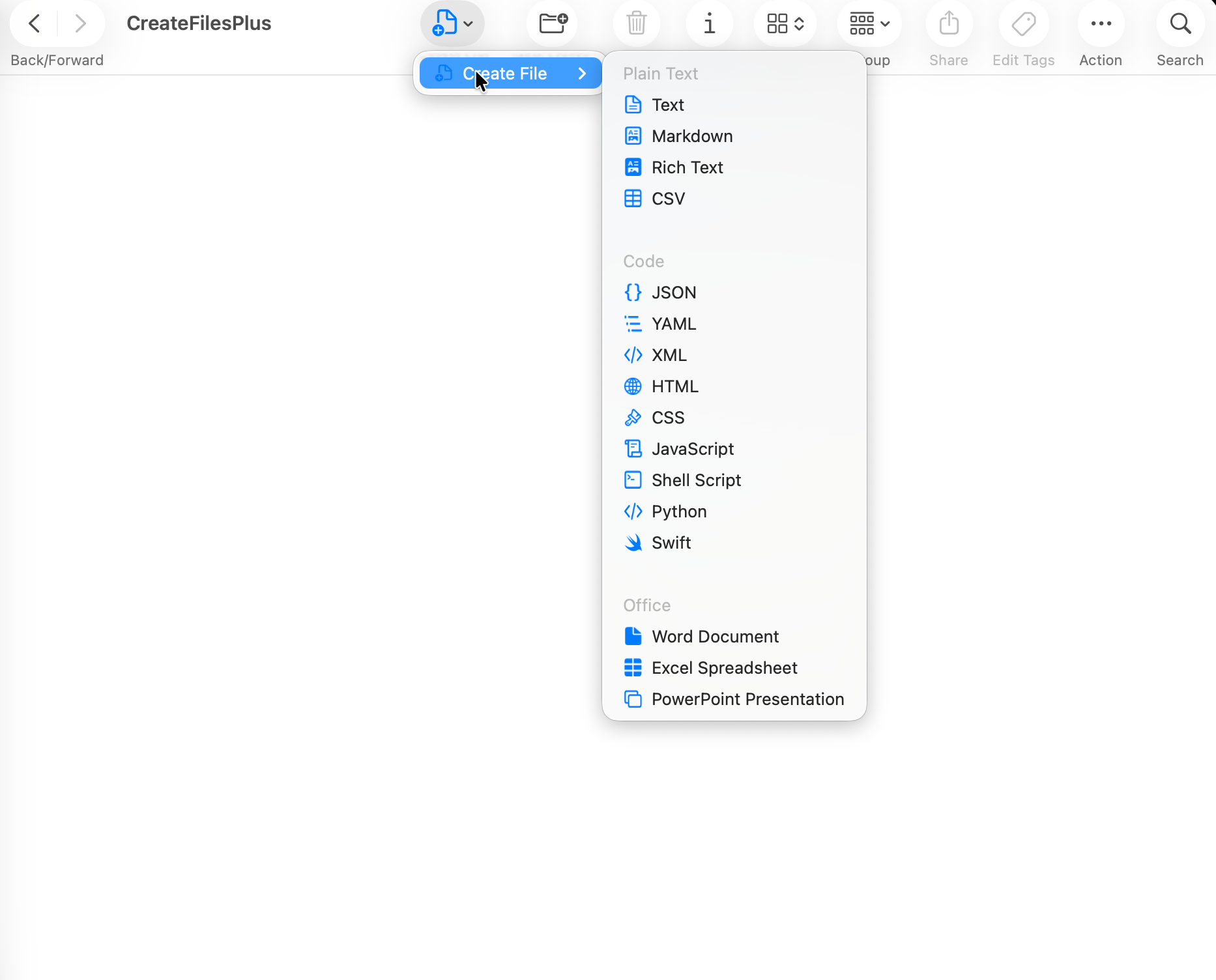
CreateFiles+ provides 19 built-in file types, Finder and toolbar access, Control-Option-N Quick Create, custom templates, Batch Create for up to 100 files, and reusable Folder Packs.
What CreateFiles+ creates
CreateFiles+ creates new local files in a folder you choose. It supports Text, Markdown, CSV, JSON, HTML, CSS, JavaScript, shell scripts, Word, Excel, PowerPoint, and other starter types. It does not replace your editor and does not read or modify the contents of existing documents.
Where the Finder right-click command works
Use the CreateFiles+ right-click command in ordinary local Finder folders. macOS can hide third-party Finder extension menus in iCloud Drive, OneDrive, Google Drive, Desktop, Documents, and other protected locations; CreateFiles+ does not bypass that system restriction.
The reliable fallback routes
Add the Create File button from Finder's View > Customize Toolbar menu for cloud or protected folders, or press Control-Option-N to open Quick Create for the front Finder folder. The menu bar route remains available when the Finder extension is disabled.
When CreateFiles+ is not necessary
If you create one blank text file every few months and are comfortable with Terminal or TextEdit, the built-in methods may be enough. CreateFiles+ is intended for repeated file creation, multiple formats, templates, batches, and reusable project structures.
How to do it with CreateFiles+
- Open the destination folder in Finder.
- Right-click the folder background in a supported local folder, click the Create File toolbar button, or press Control-Option-N.
- Confirm that Quick Create shows the intended Finder folder; switch the destination before creating if needed.
- Choose one of the 19 built-in types or a custom template, name the file, and create it.
- Open the new file in the editor or Office app you already use.
Frequently asked questions
Can macOS create a blank file from Finder by default?
macOS does not provide a universal Finder Create New File command for common blank file types. CreateFiles+ adds that workflow.
Does CreateFiles+ require cloud storage or an account?
No. CreateFiles+ is a local Mac utility. Your file names, file contents, and folder contents stay on your Mac.
Why does the right-click command disappear in iCloud Drive or OneDrive?
macOS reserves some protected and cloud-synced Finder locations and may not show third-party extension menus there. Use the Finder toolbar button or Control-Option-N Quick Create instead.
Is Terminal still a good option?
Yes. Terminal is a good free option for occasional empty text or code files when you know the destination path. It is not a replacement for valid Office templates, Finder UI, batches, or reusable Folder Packs.
Related CreateFiles+ guides
Create the file in the Finder folder you already have open.
Try the direct-download app free for 7 days with no card, or purchase CreateFiles+ through Apple.